
Adding moves
In the getting started guide, you learned how to initialize the extension with a sample demo. In this guide, you will learn how to add your scene moves to the act configuration.
In version 1.9.0, Demo Time introduced a new Act Editor GUI that makes it easier to create and manage your scenes and its related moves. That means that you now have the option to create your scenes in a more visual way, without having to edit JSON or YAML files directly. You can still have the option to switch back to the code view if you prefer by setting the demoTime.openInConfigEditor setting to false.
Adding your first moves
Now that you have initialized the extension, you can start adding your first moves.
You can open the newly created demo.json file in the .demo folder manually, or you can click on the “eye” icon in the Demo Time view to open the moves editor.
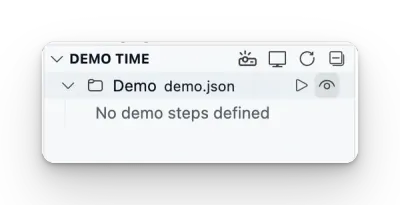
Once the demo.json file is opened, you will see the visual editor to create new scenes and moves.
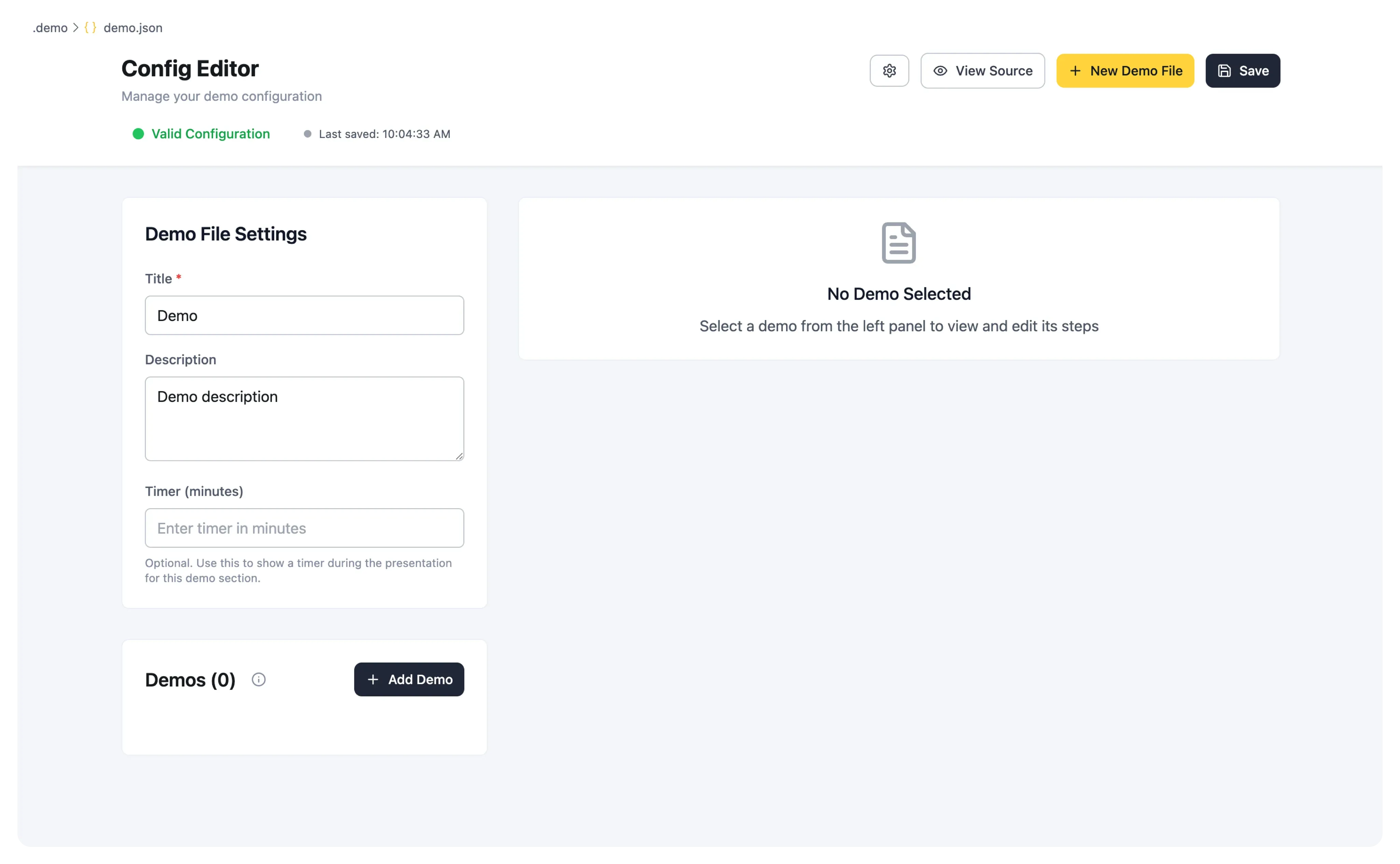
Click on the Add Scene button to create your first scene.
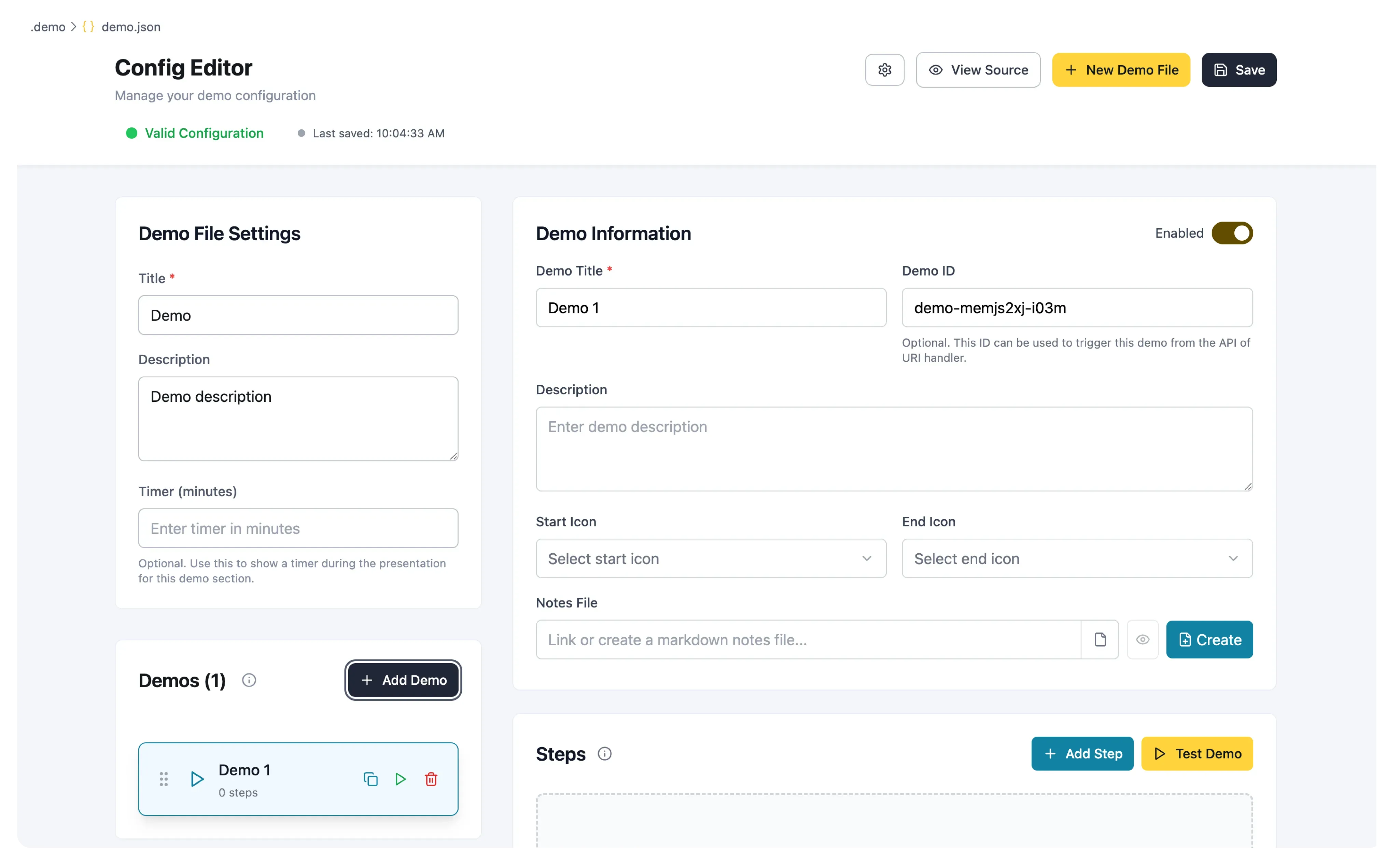
In the Scene Information section, you can define the settings for your scene like:
- Title: The title of your scene.
- Description: A brief description of what your scene does.
- Scene ID: The unique identifier for your scene, which can be used to trigger the scene via the API, URI Handler, or
runByIdaction. - Icons: The icons that will be used in the tree view panel.
- Notes: Any additional notes or information about your scene.
Adding moves
After the first scene is created, you can start adding moves. Each move that you add to a scene will be automatically ran in sequence when the scene is triggered. Click on the Add Move button to create your first move.
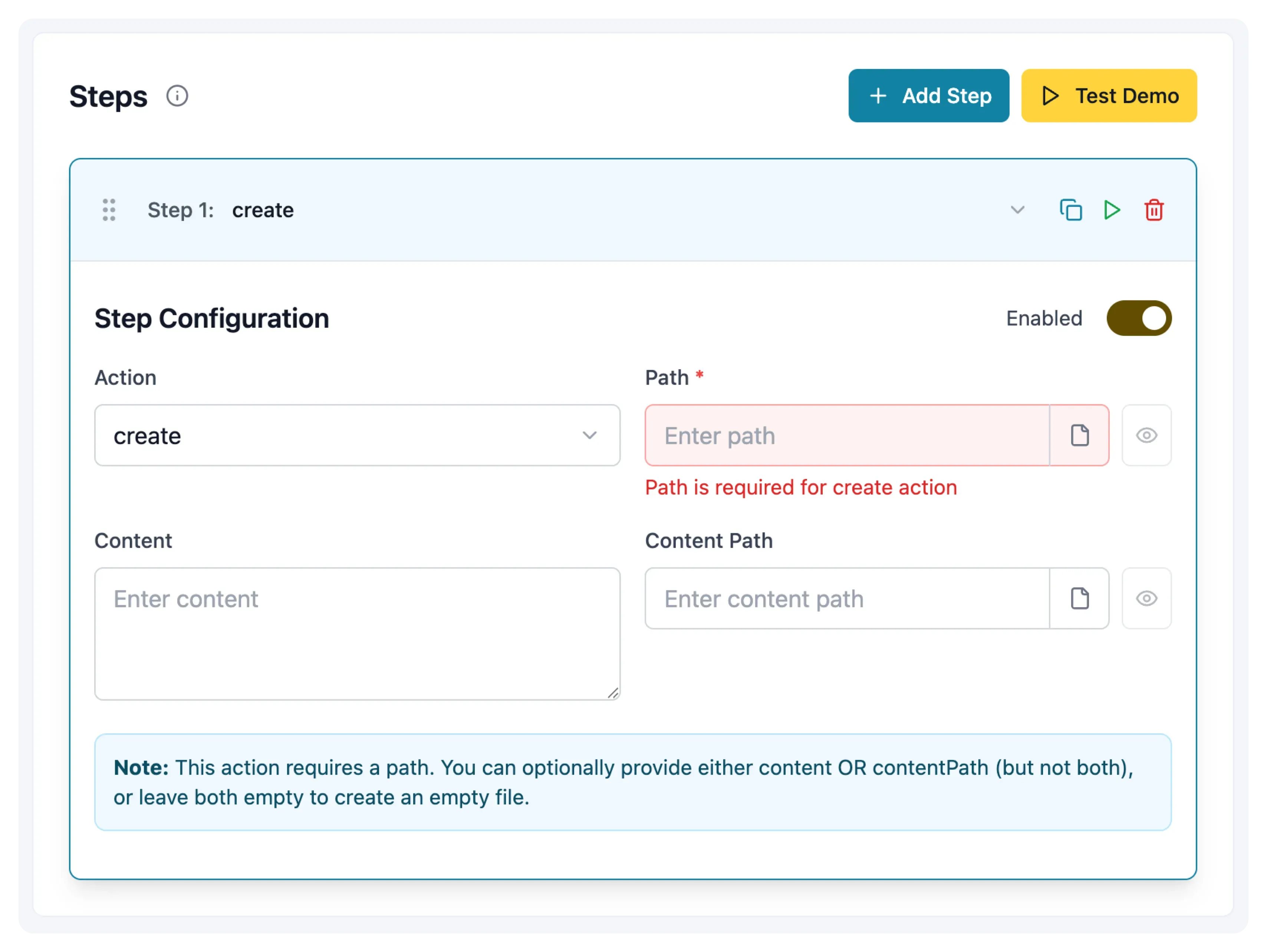
In the Action dropdown, you can pick the action to perform for your step. The GUI will guide you through the available options per action.
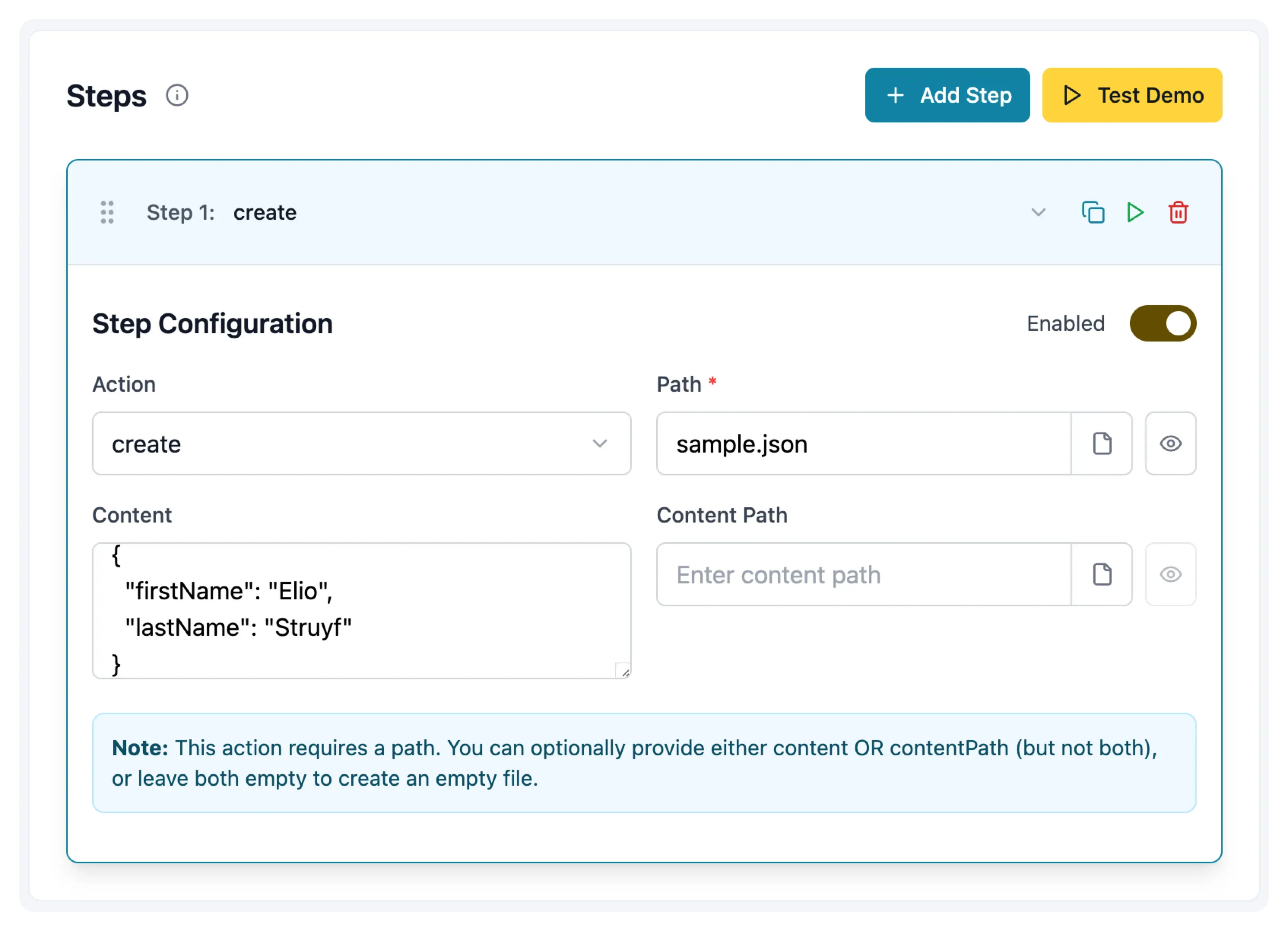
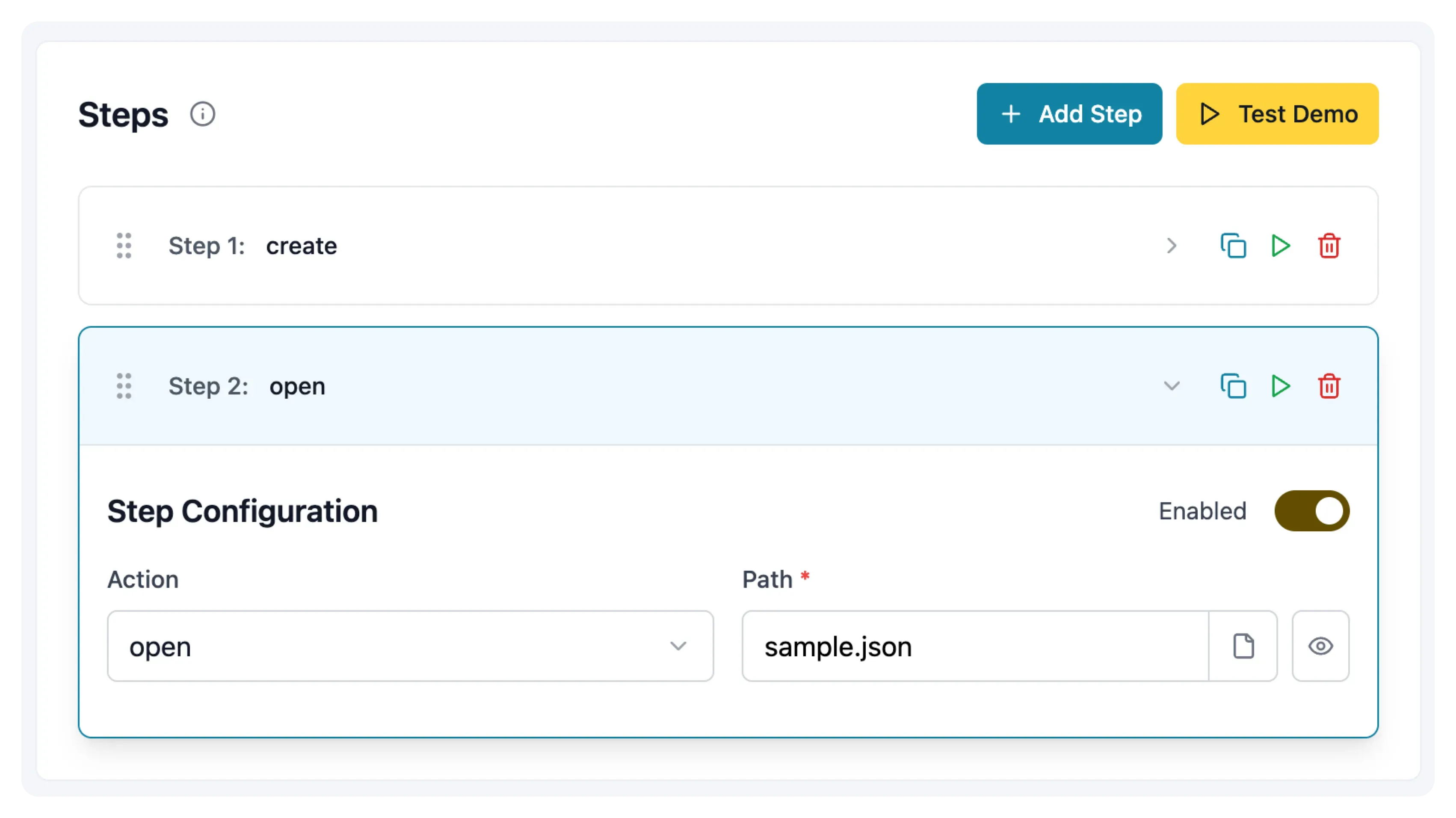
Once a move is configured, you can add additional moves, or new scenes. Here is an example to open the file after the create action:
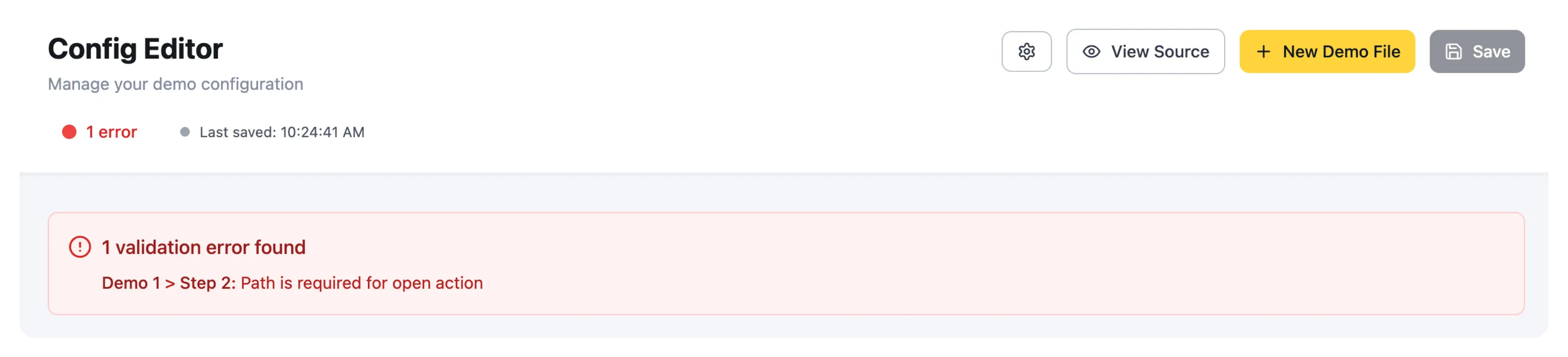
In the header of the Act Editor, you can see the validation status. If you click on the message, you can see the detailed validation errors and warnings for your demo configuration.
The default content of the demo.json file looks like this:
{ "$schema": "https://demotime.show/demo-time.schema.json", "title": "Demo", "description": "Demo description", "version": 3, "timer": 5, // Optional timer in minutes. You can also set it on global level with the `demoTime.timer` setting. "scenes": []}title: Demodescription: Demo descriptionversion: 3timer: 5 # Optional timer in minutes. You can also set it on global level withscenes: []You can start adding your moves in the moves array. Each move should have the following structure:
{ "title": "<title>", "description": "<description>", "disabled": false, // Disable a move, when set to true, it will be skipped "scenes": []}title: <title>description: <description>disabled: false # Disable a move, when set to true, it will be skippedscenes: []You can also add icons to the scene to make them more recognizable.
{ "title": "<title>", "description": "<description>", "version": 3, "icons": { "start": "<name of the icon (optional)>", "end": "<name of the icon (optional)>" }, "scenes": []}title: <title>description: <description>version: 3icons: start: <name of the icon (optional)> end: <name of the icon (optional)>scenes: []Sample act file configuration
Here is an example of a demo where you create a file and open it:
{ "$schema": "https://demotime.show/demo-time.schema.json", "title": "Demo", "description": "Demo description", "version": 3, "scenes": [ { "title": "Create and open sample.json", "description": "Create a sample.json file with some content.", "icons": { "start": "file-code", "end": "pass-filled" }, "moves": [ { "action": "create", "path": "sample.json", "content": "{\n \"firstName\": \"Elio\",\n \"lastName\": \"Struyf\"\n}" }, { "action": "open", "path": "sample.json" } ] } ]}title: Demodescription: Demo descriptionversion: 3scenes: - title: Create and open sample.json description: Create a sample.json file with some content. icons: start: file-code end: pass-filled moves: - action: create path: sample.json content: "{\n \"firstName\": \"Elio\",\n \"lastName\": \"Struyf\"\n}" - action: open path: sample.jsonAdding moves from a file
When you have a file open in the editor, you can add a move to your act file by using the command Demo Time: Add scene.
For example, if you want to highlight a piece of code, you can select the code and do the following:
- Open the command palette by pressing Ctrl+Shift+P or Cmd+Shift+P.
- Search for the Demo Time: Add scene command.
- Click on the
highlightaction in the command palette.
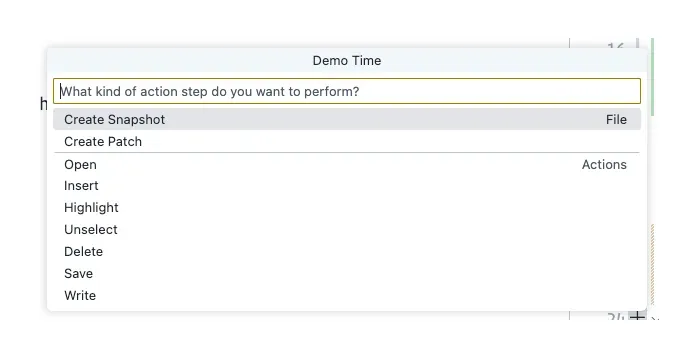
- Select the act file in which you want to add the step (only if you have multiple act files).
- Select if you want to add it to an existing demo or create a new one.
Executing the demo
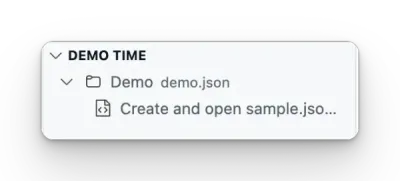
Each demo you add will be available in the Demo Time view. You can execute each step by clicking on the scene title or starting the presentation mode.
Adding notes to your scenes
You are also able to add notes to your scenes. These notes can be used to provide additional information for yourself or others who will be executing the scene.
The notes should be created as a markdown file.
When you open one of your acts in the Act Editor. Under the Scene Information section, you have the option to link a markdown file containing your notes or create a new one.
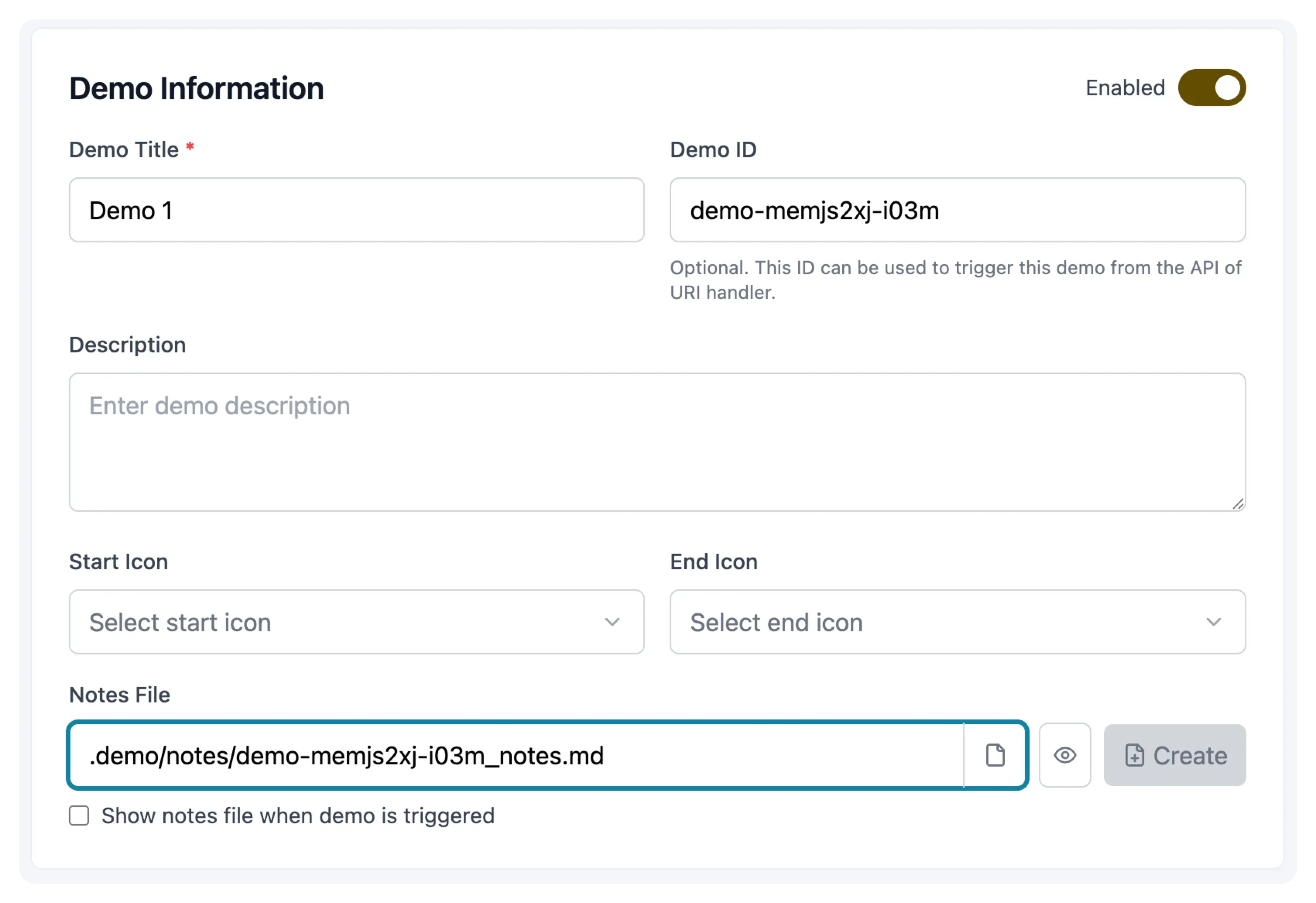
By checking the Show notes file when demo is triggered option, the notes file will automatically open to the side of your editor when the demo is triggered.
Here is an example of how you can add notes to your demo:
{ "title": "<title>", "description": "<description>", "version": 3, "scenes": [...], "notes": { "path": "<relative path to the file>", "showOnTrigger": "<show notes on trigger (optional) - default is false>" }}title: <title>description: <description>version: 3scenes: [...]notes: path: <relative path to the notes file> showOnTrigger: <show notes on trigger (optional) - default is false>Implementing other scenes and moves
You can add more scenes and moves to the scenes array. In the actions section of the documentation, you can find all the available actions you can use to create your scenes.